Meta Business Manager Verification: 9 Proven Fixes to Avoid Rejection (2026)
Last updated: August 2026
Meta Business Manager verification gets rejected more often than it gets approved on the first try — and the rejection email almost never tells you why. It just points to a generic policy link. The good news: the real reasons behind a rejected Meta Business Manager verification fall into a short, predictable list, and every single one of them is fixable.
This guide breaks down the 9 most common causes of a rejected Meta Business Manager verification in 2026, the exact fix for each, and how long the process realistically takes once you resubmit.
Table of Contents
- What Is Meta Business Manager Verification?
- 9 Common Meta Business Manager Verification Rejection Reasons
- How to Fix a Rejected Verification
- How Long Meta Business Manager Verification Takes in 2026
- Should You Use a Verification Service Instead?
- FAQs
What Is Meta Business Manager Verification?
Meta Business Manager verification is the process Meta uses to confirm a business is real, legitimate, and actually connected to the account requesting it. Once approved, you get a green verified badge on your Business Manager, higher ad-spend limits, access to WhatsApp API scaling, and priority support.
It is a one-time process. Once your Meta Business Manager verification is approved, you don’t need to re-verify per Facebook Page, per ad account, or per WhatsApp number connected to that same bu
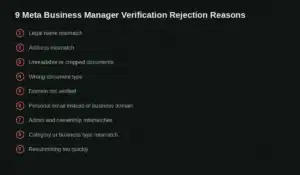
9 Common Meta Business Manager Verification Rejection Reasons
Most Meta Business Manager verification rejections aren’t caused by anything dramatic. They’re small mismatches an automated system flagged — the kind a human reviewer might have let slide. Here are the nine that come up again and again.
1. Legal Name Mismatch
This is the single most common reason for rejection. If your Business Manager lists “Acme Marketing” but your registration certificate says “Acme Marketing LLC,” that punctuation difference is enough to trigger a rejection.
Fix: Copy your legal business name exactly as it appears on your registration document — including “LLC,” “Inc,” commas, and spacing — into Business Manager’s business details.
2. Address Mismatch
Suite numbers, abbreviations (“St.” vs. “Street”), and postal formatting differences between your submitted address and your proof document are a frequent trigger.
Fix: Match your address field character-for-character with your utility bill, lease, or registration document. Spell out abbreviations the same way the document does.
3. Unreadable or Cropped Documents
Blurry scans, missing corners, and low-resolution photos are an easy, avoidable reason for rejection.
Fix: Submit a full-page, high-resolution scan or photo in PDF, JPEG, or PNG format, with all four corners and all text clearly visible.
4. Wrong Document Type
Meta only accepts specific categories of official documents — think certificate of incorporation, business license, articles of association, or a recent tax filing. A generic invoice or a business card won’t pass.
Fix: Check Meta’s current accepted-document list before you upload anything, and use a government-issued or registrar-issued document wherever possible.
5. Domain Not Verified
If your business website’s domain hasn’t been separately verified inside Business Manager, Meta can’t confirm you actually own that web property — even if the site itself looks legitimate.
Fix: Go to Business Settings → Brand Safety → Domains, add your domain, and complete either the DNS TXT record or HTML file-upload verification method.
6. Personal Email Instead of a Business Domain Email
Using a Gmail, Yahoo, or Hotmail address instead of a company email (name@yourcompany.com) weakens your application and roughly doubles review time in practice.
Fix: Switch your primary contact email to one on your own verified domain before submitting.
7. Admin and Ownership Mismatches
If you’re listed as a Page admin but not a Business Manager admin — or if ownership of assets isn’t clearly assigned to the entity being verified — Meta can’t confirm who actually controls the business.
Fix: Confirm you hold Business Admin (not just Page Admin) access, and that every asset you’re claiming is assigned inside the same Business Manager.
8. Category or Business Type Mismatch
If your stated business category doesn’t logically match your website, documents, or business name, that inconsistency reads as a red flag to Meta’s review system.
Fix: Keep your declared category, website content, and legal documents telling the same story — a marketing agency shouldn’t be filed under “retail,” for example.
9. Resubmitting Too Quickly
Fixing one field and resubmitting the same day is one of the most common self-inflicted causes of a second rejection — same-day resubmissions tend to get auto-flagged by Meta’s review system.
Fix: Fix the specific flagged issue, wait at least 24 hours, then resubmit once — not repeatedly.
How to Fix a Rejected Verification
- Read the rejection notice carefully. It’s vague, but it sometimes hints at the category (documents, details, or domain).
- Cross-check every field — legal name, address, phone, and category — against your official registration document, character by character.
- Re-scan your documents at full resolution if there’s any chance the original was blurry or cropped.
- Verify your domain separately in Business Settings if you haven’t already.
- Switch to a business-domain email if you’re currently using a personal one.
- Wait 24 hours, then resubmit exactly once.
- Avoid resubmitting more than 3–4 times in a short window — Meta will silently slow-walk applications that look like repeated guessing.
How Long Meta Business Manager Verification Takes in 2026
Document-based Meta Business Manager verification typically takes 3–7 business days, and can stretch to around 10 days during Meta’s quarterly policy review windows. Domain-based verification, when it’s available for your business type, is usually the fastest path to approval.
Should You Use a Verification Service Instead?
If you’d rather not chase down document formatting and resubmission timing yourself, a dedicated service can handle the entire Meta Business Manager verification process for you — document prep, field matching, and resubmission strategy included. VerifiedBMPoint specializes in exactly this and is worth a look if you’ve already been rejected once and want it handled correctly the second time.
For the official rules straight from the source, Meta’s own Business Help Center is the authoritative reference for accepted document types and current verification policy.
FAQs
Why does Meta Business Manager verification get rejected with no explanation? Meta’s rejection notice is deliberately generic to prevent people from gaming the review system. The actual cause is almost always one of the nine reasons above — most commonly a name or address mismatch.
Can I appeal a rejected verification? Yes. Fix the specific issue you believe caused the rejection, wait 24 hours, and resubmit through Business Settings rather than starting a brand-new Business Manager.
Does a rejected verification affect my ad account? Not directly. You can usually still run ads at standard limits without verification — but you’ll miss out on higher spending limits, the verified badge, and full WhatsApp API scaling until you’re approved.
How many times can I resubmit it? There’s no official public limit, but Meta tends to slow-walk accounts after roughly four rejections in a short window. Fix every flagged issue before each resubmission rather than guessing.
Final Thoughts
A rejected Meta Business Manager verification feels final, but it almost never is. In the vast majority of cases, it comes down to one of the nine mismatches above — fix the specific one that applies to you, wait a day, and resubmit once. If you’d rather skip the trial and error entirely, VerifiedBMPoint can manage the whole Meta Business Manager verification process on your behalf.